
Overview
The protein structure visualization tool is an AI-powered module integrated into the LensAI™ portal. It enables users to analyze and visualize protein structures using natural language commands through a chatbox interface. The tool is designed to support scientific exploration of molecular data without requiring technical knowledge or programming expertise.
This functionality is particularly useful for users working with structural biology, protein modeling, and interaction analysis. By leveraging large language models (LLMs), the tool translates plain English input into complex visualization and selection commands, facilitating easy, interactive and targeted structural analysis.
Accessing the tool
To use the Smart Visualization Tool:
-
Navigate to your dataset and open any PDB file.
-
Click on the "View" icon
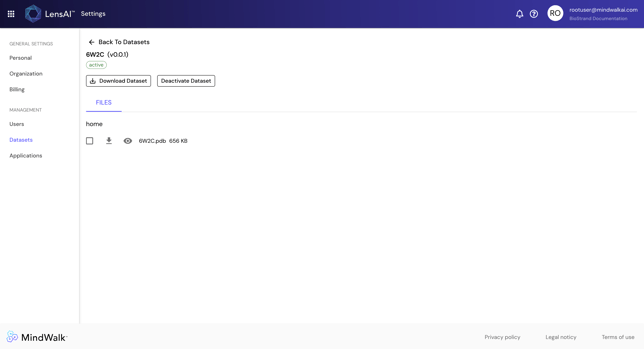 Figure 1: Navigating to a dataset and selecting a PDB file (e.g., 6W2C.pdb)
 -
Once opened, a 3D structure viewer is launched. On the left, you will see the chat box, at the right the protein itself is visualized.
-
Use an LLM question for natural language interaction
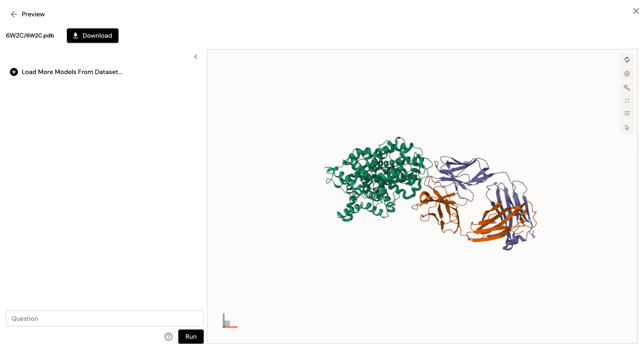 Figure 2: Smart visualization interface within the LenAI portal, with the LLM input box and the 3D model viewer
 -
Click the question mark (?) beside the input box to view example questions.
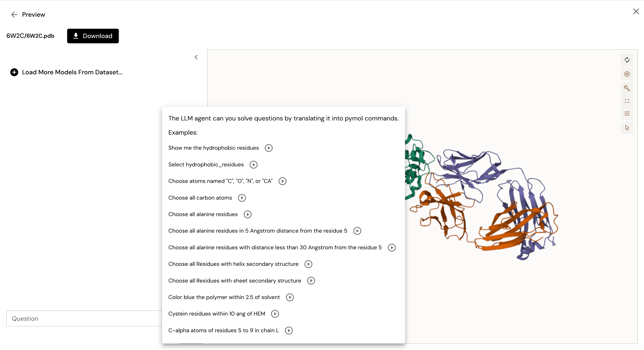
Figure 3: Example commands for the Smart visualization interface -
Type your question or command in plain English (e.g., “Show ASP98 and highlight residues within 5 Å”) and click Run.
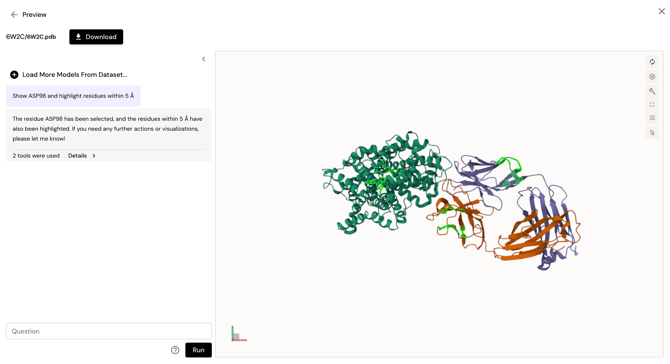
Figure 4: Execution of example command in Smart visualization interface
Capabilities
|
Functionality |
Description |
|---|---|
|
Natural Language Input |
Accepts plain English commands to manipulate molecular models. |
|
3D Protein Visualization |
Provides interactive 3D representations (rotate, zoom, pan). |
|
Residue and Atom Selection |
Allows precise selection based on residue type, atom name, proximity, or structural features. |
|
Color Mapping |
Enables visual distinction using color coding based on residue properties (e.g., hydrophobicity, secondary structure). |
|
Labeling |
Supports the addition of labels to selected elements for annotation. |
|
Distance-Based Queries |
Identifies atoms or residues within a defined distance of a specified reference point. |
|
Secondary Structure Analysis |
Highlights α-helices, β-sheets, or loops based on structural context. |
|
Ligand Interaction Assessment |
Enables analysis of residue-ligand proximity |
Basic usage
Once you have successfully opened a PDB file within the protein structure visualization tool, you can start interacting with the molecular model by entering commands into the designated input field. This intuitive interface allows you to communicate with the tool using natural language or syntax-based queries, depending on your preference and expertise. As you type your commands, the tool's advanced AI algorithms will interpret your input, translating it into precise actions that are applied directly to the molecular model. This process enables you to manipulate the 3D structure in various ways, such as highlighting specific residues, coloring regions based on their properties, or selecting atoms within a certain distance. By leveraging this functionality, you can conduct detailed analyses and gain insights into the molecular structure without needing extensive technical knowledge or programming skills.
Common commands
Show ASP 98Highlight chain AColor residues by hydrophobicityShow all residues within 5 Angstrom of RFY 705Add labelsChoose atoms named "C", "O", "N", or "CA"Color blue the polymer within 2.5 of solvent
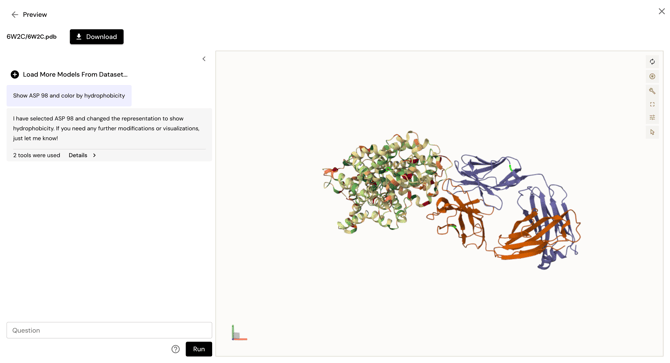
Example scenario
Use case: Structural analysis of Asp98 in SERT (PDB: 6W2C)
This example illustrates a step-by-step analysis of Asp98 within the serotonin transporter to assess its interaction with the ligand I-paroxetine (RFY).
Steps
I would like to show ASP 98Show all residues within 5 Angstrom of ASP 98 in chain ASelect 705 in purple and add a labelColor residues by hydrophobicityColor blue the helices residues
Objective
These commands collectively help determine the proximity of Asp98 to the ligand, the local hydrophobic/hydrophilic environment, and whether Asp98 is part of a stable secondary structure. This information can be used to hypothesize its potential role in ligand stabilization or protein structural integrity.
Supported command patterns
Selection commands
|
Command |
Description |
|---|---|
|
|
Selects all hydrophobic residues. |
|
|
Selects all alanines (ALA). |
|
|
Selects common backbone atoms. |
|
|
Spatial residue selection. |
|
|
Selects all helix-forming residues. |
|
|
Selects all residues forming β-sheets. |
Visualization commands
|
Command |
Description |
|---|---|
|
|
Applies a color scale based on residue hydrophobicity. |
|
|
Highlights spatial neighbors of the ligand. |
|
|
Highlights protein regions close to solvent molecules. |
|
|
Adds residue or atom labels to the selection. |
Best practices
-
Use clear, unambiguous language.
-
Specify chain identifiers when necessary (e.g., “Asp98 in chain A”).
-
Combine selection, coloring, and labeling for detailed visualizations.