What is the Alphafold+ analysis
AlphaFold+ is based on the latest official release of DeepMind’s AlphaFold2 (v2.3.2) and extends it with an integrated reporting module. It predicts the 3D structure of proteins or protein complexes and generates a clear, browser-viewable report summarizing prediction confidence and model ranking.
How to run an AlphaFold+ job
The AlphaFold+ application requires an amino acid sequence. Upload a .fasta file or use an amino acid sequence.
-
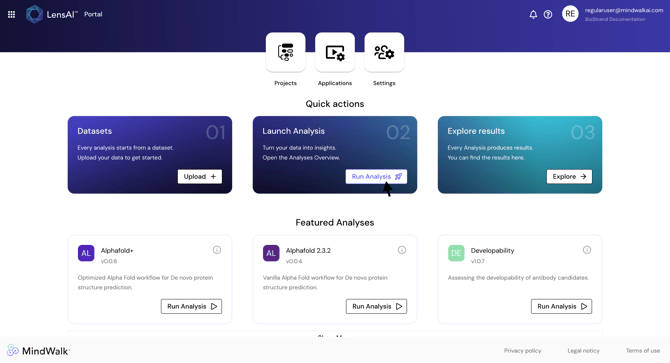
Step 1. On the LensAI™ Home Page, click "Run Analysis"
-
Step 2. Locate the AlphaFold+ analysis and click "Run Job"
-
Step 3. Inside the run configuration, select the dataset
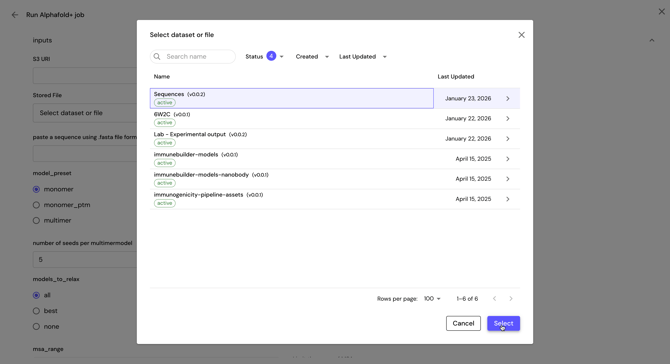
Caution: The dataset must be chosen, not the .fasta file itself.
Caution: The .fasta file must follow some rules.
-
Sequences cannot contain 'new lines'
- The file name cannot contain a space
- Fasta headers cannot contain spaces
-
Step 4. Define the output dataset logical name
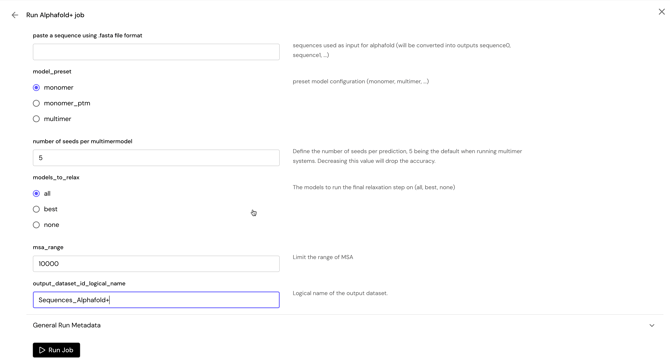
Caution: The name of the output dataset should not contains any space. Underscore is accepted.
-
Step 5. Optionally configure the other inputs
- model_preset: Preset model configuration
- Monomer: Suitable for predicting the structure of single protein chains.
- Monomer PTM: Includes predicted alignment error and pLDDT confidence scores for assessing the accuracy of specific regions.
- Multimer: Designed for protein complexes involving multiple chains or interactions.
- number of seeds per multimermodel: Define the number of seeds per prediction, 5 being the default when running multimer systems. Decreasing this value will drop the accuracy.
- models_to_relax: The models to run the final relaxation step on (all, best, none)
- msa_range: Limit the range of MSA. Adjust the preset MSA range for generating the quality report. This setting allows users to focus on specific sequence portions of interest, with a narrower range enhancing analysis accuracy by targeting relevant data. Conversely, a broader range offers a comprehensive overview, beneficial for understanding structural context. Balance the selected range with available computational resources, as larger ranges may demand more processing time and memory.
- model_preset: Preset model configuration
- Step 6. Optionally provide experiment details under the General Run Metadata Inputs
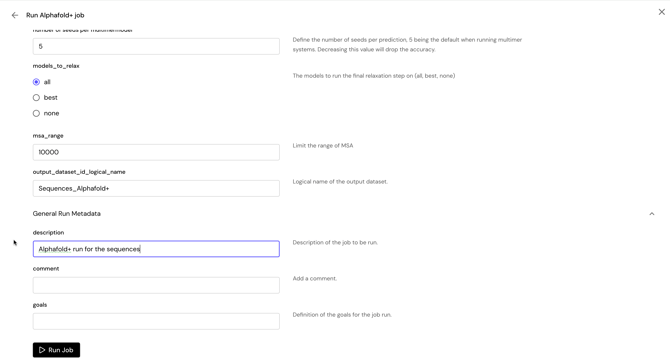
- Step 7. Click "Run Job" to launch the application
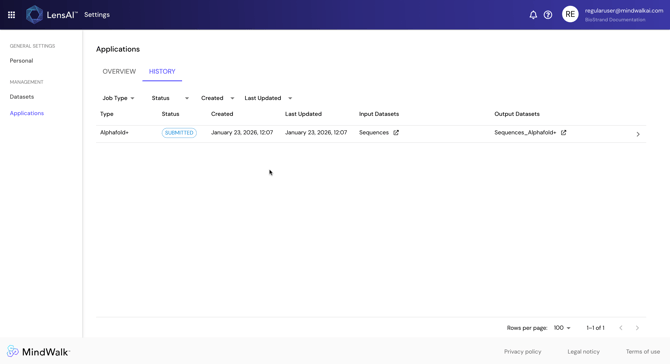
- Step 8. Monitor the state and the results of the analysis in the "Applications" page under the "History" tab